Mermaid Git Graph Tutorial — Visualize Branch Strategies
Learn to create git graph diagrams with Mermaid.js. Visualize branching strategies, merge workflows, cherry-picks, and popular models like GitFlow and trunk-based development.
Introduction
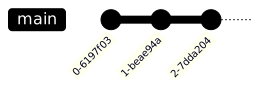
Understanding Git branching strategies is crucial for development teams, and visualizing them makes the concepts much clearer. Mermaid's git graph diagram type lets you create visual representations of commits, branches, merges, and cherry-picks with simple text commands.
Whether you're documenting your team's workflow, teaching Git concepts, or planning a migration between branching strategies, Mermaid git graphs are the perfect tool.
Basic Syntax
gitGraph
    commit
    commit
commitThis creates a simple linear history with three commits on the default main branch. Each commit command adds a new commit node to the graph.
Commit Options
You can customize each commit:
gitGraph
    commit id: "init"
    commit id: "feat-1" type: HIGHLIGHT
commit id: "fix-1" tag: "v1.0"Commit properties:
id— Custom label (displayed on the commit node)tag— Version tag (shown above the commit)type— Visual type:NORMAL(default),HIGHLIGHT,REVERSE
Branching and Merging
The core of any git graph is branching:
gitGraph
    commit id: "initial"
    commit id: "add readme"
    branch feature
    checkout feature
    commit id: "add login"
    commit id: "add tests"
    checkout main
    commit id: "hotfix"
    merge feature id: "merge feature"
commit id: "release" tag: "v1.0"Key commands:
branch— Create a new branchcheckout— Switch to a branchmerge— Merge a branch into the current branchcherry-pick id: "— Cherry-pick a specific commit"
Cherry-Pick
Demonstrate cherry-picking:
gitGraph
    commit id: "A"
    commit id: "B"
    branch feature
    checkout feature
    commit id: "C"
    commit id: "D" type: HIGHLIGHT
    commit id: "E"
    checkout main
    commit id: "F"
    cherry-pick id: "D"
commit id: "G"This shows commit D being cherry-picked from the feature branch to main.
GitFlow Strategy
GitFlow is one of the most popular branching models. Here's how to visualize it:
gitGraph
    commit id: "init" tag: "v0.1"
    branch develop
    checkout develop
    commit id: "dev setup"

    branch feature/auth
    checkout feature/auth
    commit id: "login page"
    commit id: "auth API"
    commit id: "auth tests"
    checkout develop
    merge feature/auth id: "merge auth"

    branch feature/dashboard
    checkout feature/dashboard
    commit id: "dashboard UI"
    commit id: "widgets"
    checkout develop
    merge feature/dashboard id: "merge dashboard"

    branch release/v1.0
    checkout release/v1.0
    commit id: "bump version"
    commit id: "fix typos"
    checkout main
    merge release/v1.0 id: "release" tag: "v1.0"
    checkout develop
    merge release/v1.0 id: "back-merge"

    checkout main
    branch hotfix/security
    commit id: "patch CVE"
    checkout main
    merge hotfix/security id: "hotfix" tag: "v1.0.1"
    checkout develop
merge hotfix/security id: "hotfix to dev"GitFlow Branch Purposes
- main — Production-ready code. Every commit is a release.
- develop — Integration branch for features. Always ahead of main.
- feature/* — Individual features. Branch from develop, merge back to develop.
- release/* — Release preparation. Branch from develop, merge to both main and develop.
- hotfix/* — Emergency fixes. Branch from main, merge to both main and develop.
Trunk-Based Development
A simpler strategy where everyone works on short-lived branches off main:
gitGraph
    commit id: "init"
    commit id: "CI setup"

    branch feat-1
    checkout feat-1
    commit id: "small change"
    checkout main
    merge feat-1

    commit id: "direct fix"

    branch feat-2
    checkout feat-2
    commit id: "refactor"
    commit id: "tests"
    checkout main
    merge feat-2

    branch feat-3
    checkout feat-3
    commit id: "update API"
    checkout main
    merge feat-3

commit id: "deploy" tag: "v1.1"Key Principles of Trunk-Based
- Short-lived branches — 1-2 days maximum
- Small, frequent merges — Reduce merge conflicts
- Feature flags — Instead of long-lived feature branches
- Continuous integration — Every merge triggers CI/CD
GitHub Flow
A simplified model used by many teams:
gitGraph
    commit id: "v1.0" tag: "v1.0"
    branch feature/search
    checkout feature/search
    commit id: "search UI"
    commit id: "search API"
    commit id: "search tests"
    checkout main
    merge feature/search id: "PR #42 merged"
    commit id: "deploy" tag: "v1.1"

    branch fix/bug-123
    checkout fix/bug-123
    commit id: "fix null check"
    checkout main
    merge fix/bug-123 id: "PR #43 merged"
commit id: "deploy" tag: "v1.1.1"GitHub Flow rules:
mainis always deployable- Create feature branches from main
- Open a pull request for discussion
- Merge to main after review
- Deploy immediately after merge
Release Branch Strategy
For teams that maintain multiple release versions:
gitGraph
    commit id: "init"
    commit id: "feature A"
    commit id: "feature B" tag: "v1.0"
    branch release/v1
    checkout release/v1
    commit id: "v1 patch 1"
    commit id: "v1 patch 2" tag: "v1.0.2"

    checkout main
    commit id: "feature C"
    commit id: "feature D" tag: "v2.0"
    branch release/v2
    checkout release/v2
    commit id: "v2 patch 1" tag: "v2.0.1"

    checkout main
    commit id: "feature E"
commit id: "feature F"This shows how teams can maintain v1.x patches while continuing v2.x development.
Comparing Strategies Side by Side
Here's when to use each strategy:
GitFlow — Best For:
- Teams with scheduled releases
- Products with multiple supported versions
- When you need a staging/integration branch
Trunk-Based — Best For:
- Teams practicing continuous deployment
- Mature CI/CD pipelines
- Small, experienced teams
- Microservice architectures
GitHub Flow — Best For:
- Open-source projects
- Small to medium teams
- Web applications with continuous deployment
- Teams that want simplicity
Styling Git Graphs
Custom Branch Colors
You can customize how branches appear using Mermaid themes:
%%{init: { 'theme': 'base', 'themeVariables': {
    'git0': '#4f46e5',
    'git1': '#10b981',
    'git2': '#f59e0b',
    'git3': '#ef4444',
    'gitBranchLabel0': '#ffffff',
    'gitBranchLabel1': '#ffffff',
    'gitBranchLabel2': '#000000',
    'gitBranchLabel3': '#ffffff'
}}}%%
gitGraph
    commit
    branch develop
    checkout develop
    commit
    branch feature
    commit
    checkout develop
    merge feature
    checkout main
merge develop tag: "v1.0"Branch Ordering
Mermaid renders branches in the order they're created. Plan your branch creation order to get a clean layout:
- Create the main branch first (automatic)
- Create long-lived branches (develop, release) early
- Create feature branches when needed
Documenting Your Team's Workflow
Use git graphs in your team's CONTRIBUTING.md or development guide:
## Our Branching Strategy

We use a simplified GitFlow model:
gitGraph
commit tag: "latest release"
branch develop
checkout develop
commit id: "feature work"
branch feature/your-feature
commit id: "your changes"
checkout develop
merge feature/your-feature id: "PR merged"
checkout main
merge develop tag: "next release"
### Steps to Contribute:
1. Branch from `develop`
2. Name your branch `feature/description`
3. Open a PR to `develop`
4. After review, it'll be merged
5. Releases are cut from `develop` to `main`
Best Practices
- Keep git graphs focused. Show one strategy or workflow per diagram. Don't try to illustrate every possible scenario.
- Use meaningful commit IDs. Instead of auto-generated IDs, use descriptive labels like
"add auth","fix bug","deploy".
- Add version tags. Use
tag: "v1.0"on release commits to clearly mark version milestones.
- Highlight important commits. Use
type: HIGHLIGHTfor commits you want to draw attention to.
- Document the strategy, not the history. Git graphs in documentation should show the ideal workflow, not your actual messy commit history.
- Combine with text explanations. Not everyone reads diagrams intuitively. Add bullet points explaining each step.
Limitations
- No detached HEAD — You can't show detached HEAD states
- No rebasing — Mermaid git graphs don't support rebase visualization
- No squash merges — All merges are shown as merge commits
- Limited branch count — More than 4-5 branches makes the diagram hard to read
- No stashing — Stash operations can't be visualized
For these advanced scenarios, consider using a whiteboard or specialized Git visualization tools alongside your Mermaid documentation.
Conclusion
Mermaid git graphs are invaluable for documenting branching strategies, teaching Git workflows, and communicating development processes. Whether your team uses GitFlow, trunk-based development, or GitHub Flow, visualizing the strategy makes it accessible to everyone — from junior developers to stakeholders who need to understand the release process.