Creating Pie Charts with Mermaid.js
Learn how to create pie charts with Mermaid.js. Simple syntax, customization options, real-world examples, and when to use pie charts in documentation.
Introduction to Mermaid Pie Charts
Pie charts are the simplest diagram type in Mermaid — and sometimes simple is exactly what you need. They're perfect for showing proportions, distributions, and breakdowns in your documentation.
While pie charts aren't suited for every data visualization scenario, they excel at showing how parts make up a whole — technology distributions, budget allocations, survey results, and more.
Basic Syntax
pie title Technology Stack Distribution
    "JavaScript" : 45
    "Python" : 25
    "Go" : 15
    "Rust" : 10
"Other" : 5That's it. Three elements:
piekeyword (optionally followed bytitle Your Title)- Labels in double quotes
- Values after the colon
Mermaid automatically calculates percentages and assigns colors.
Practical Examples
Project Language Breakdown
pie title Lines of Code by Language
    "TypeScript" : 42000
    "CSS/SCSS" : 15000
    "HTML" : 8000
    "Python (scripts)" : 3000
"Shell" : 1500Sprint Task Distribution
pie title Sprint 14 Tasks by Category
    "Feature Development" : 12
    "Bug Fixes" : 8
    "Technical Debt" : 5
    "Documentation" : 3
"DevOps" : 2Browser Market Share
pie title Browser Usage - Our App Analytics
    "Chrome" : 64
    "Safari" : 19
    "Firefox" : 8
    "Edge" : 6
"Other" : 3Budget Allocation
pie title Engineering Budget Q1 2025
    "Personnel" : 65
    "Infrastructure (AWS)" : 18
    "Tools & Licenses" : 8
    "Training" : 5
"Misc" : 4Test Coverage
pie title Test Suite Composition
    "Unit Tests" : 340
    "Integration Tests" : 85
    "E2E Tests" : 42
"Performance Tests" : 15Error Distribution
pie title Production Errors Last 30 Days
    "4xx Client Errors" : 156
    "5xx Server Errors" : 23
    "Timeout Errors" : 45
"Network Errors" : 12Display Options
Show Data (Values)
By default, Mermaid shows percentages. You can add showData to display raw values:
pie showData
    title Response Time Buckets
    "< 100ms" : 450
    "100-500ms" : 230
    "500ms-1s" : 80
"> 1s" : 40When to Use Pie Charts
Good Use Cases
- Showing composition — What makes up a whole? (Language distribution, budget breakdown)
- Small number of categories — 3 to 7 slices work best
- Documentation snapshots — Quick visual in a README or report
- Comparing proportions — When relative size matters more than exact values
Avoid Pie Charts When
- Comparing precise values — Bar charts are better for exact comparisons
- Many categories — More than 7-8 slices become unreadable
- Showing trends over time — Line charts are the right tool
- Similar-sized slices — Humans are bad at comparing similar angles; use a bar chart instead
Tips for Effective Pie Charts
1. Limit to 5-7 Slices
If you have more categories, group the small ones into "Other":
pie title API Endpoints by Usage
    "GET /api/users" : 40
    "POST /api/auth" : 25
    "GET /api/products" : 20
"Other (15 endpoints)" : 152. Order by Size
List items from largest to smallest for easier reading:
pie title Deploy Frequency by Service
    "API Gateway" : 45
    "User Service" : 25
    "Order Service" : 15
    "Notification Service" : 10
"Analytics" : 53. Use Descriptive Labels
Don't use abbreviations. Make labels self-explanatory:
Bad: "JS" : 45
Good: "JavaScript/TypeScript" : 45
4. Include Context in the Title
The title should tell the reader what they're looking at and ideally when:
Bad: pie title Data
Good: pie title Monthly Active Users by Platform (March 2025)
5. Use Meaningful Numbers
Use actual values when they matter, percentages when they don't:
pie showData
    title Incident Severity (Last Quarter)
    "Critical (P0)" : 3
    "High (P1)" : 12
    "Medium (P2)" : 45
"Low (P3)" : 89Pie Charts in README Files
Pie charts work well in GitHub README files for quick project overviews:
## Project Stats
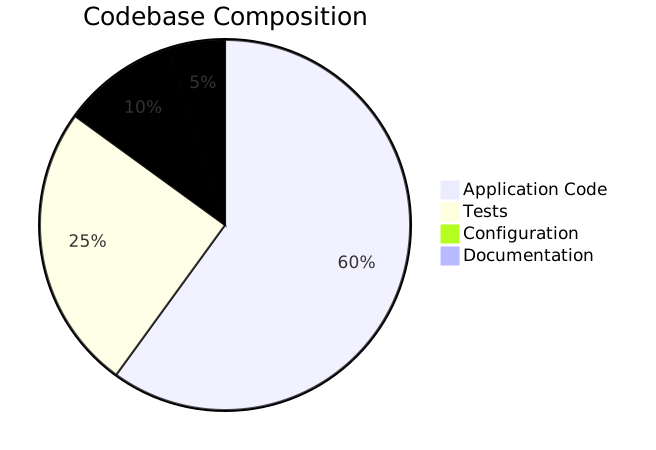
pie title Codebase Composition
"Application Code" : 60
"Tests" : 25
"Configuration" : 10
"Documentation" : 5
They're also great in:
- Architecture Decision Records — showing trade-off analysis
- Sprint retrospectives — visualizing time spent
- Status reports — quick visual summaries
- Incident postmortems — error categorization
Combining with Other Diagrams
Pie charts work best alongside other diagram types. In a project README:
- Flowchart for architecture overview
- Pie chart for technology distribution
- Gantt chart for roadmap
- Sequence diagram for API flows
Each diagram type serves a different purpose — use the right one for each piece of information.
Limitations
- No custom colors — Mermaid assigns colors automatically from its theme palette
- No legends — Labels are shown directly on or near slices
- No donut charts — Only standard pie charts
- No interactivity — Static rendering only
- Limited formatting — You can't control label position, font size, or slice explosion
For advanced data visualization, consider dedicated charting libraries like Chart.js, D3.js, or Recharts. Mermaid pie charts are for documentation, not data dashboards.
Conclusion
Mermaid pie charts are the simplest way to add data visualization to your text-based documentation. They're perfect for quick overviews and composition breakdowns — just a keyword, some labels, and values. Keep them simple, limit slices to 5-7, and use them where proportional comparison adds value to your docs.