Mermaid.js Quadrant Chart: Complete Guide with Examples
Learn how to create quadrant charts in Mermaid.js for prioritization, risk analysis, and strategic planning. Includes syntax, examples, and best practices.
# Mermaid.js Quadrant Chart: Complete Guide with Examples
Quadrant charts are one of the most powerful yet underused diagram types in Mermaid.js. They let you plot items across two axes to visualize priorities, risks, strategies, and trade-offs — all with simple text-based syntax.
In this guide, you'll learn everything about creating Mermaid quadrant charts, from basic syntax to real-world examples you can use today.
What Is a Quadrant Chart?
A quadrant chart divides a two-dimensional space into four sections using two axes. Each quadrant represents a different category or priority level. You've probably seen them used as:
- Eisenhower Matrix (urgent vs. important)
- BCG Matrix (market growth vs. market share)
- Risk Matrix (likelihood vs. impact)
- Feature Prioritization (effort vs. value)
Mermaid.js makes it easy to create these charts with plain text, no drag-and-drop tools required.
Basic Mermaid Quadrant Chart Syntax
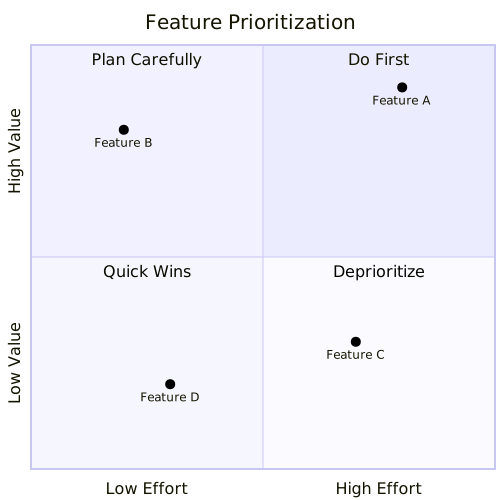
Here's the simplest quadrant chart you can create in Mermaid.js:
quadrantChart
    title Feature Prioritization
    x-axis Low Effort --> High Effort
    y-axis Low Value --> High Value
    quadrant-1 Do First
    quadrant-2 Plan Carefully
    quadrant-3 Quick Wins
    quadrant-4 Deprioritize
    Feature A: [0.8, 0.9]
    Feature B: [0.2, 0.8]
    Feature C: [0.7, 0.3]
Feature D: [0.3, 0.2]Let's break down the syntax:
quadrantChart— declares the diagram typetitle— sets the chart titlex-axisandy-axis— define axis labels with direction (low → high)quadrant-1throughquadrant-4— label each quadrant (numbered top-right, top-left, bottom-left, bottom-right)- Data points — each item has a name and
[x, y]coordinates between 0 and 1
Understanding Quadrant Numbering
The quadrant numbering in Mermaid.js follows a specific order that's important to understand:
| Quadrant | Position | Typical Use |
|---|---|---|
| quadrant-1 | Top-Right | High priority / best outcome |
| quadrant-2 | Top-Left | High on Y, low on X |
| quadrant-3 | Bottom-Left | Lowest priority |
| quadrant-4 | Bottom-Right | High on X, low on Y |
This numbering follows mathematical convention (counter-clockwise from top-right), so keep it in mind when labeling your quadrants.
Real-World Mermaid Quadrant Chart Examples
1. Eisenhower Priority Matrix
The Eisenhower Matrix is perfect for task management and personal productivity:
quadrantChart
    title Eisenhower Matrix
    x-axis Not Urgent --> Urgent
    y-axis Not Important --> Important
    quadrant-1 Do It Now
    quadrant-2 Schedule It
    quadrant-3 Eliminate
    quadrant-4 Delegate
    Crisis meeting: [0.9, 0.9]
    Strategic planning: [0.2, 0.85]
    Email replies: [0.75, 0.2]
    Social media: [0.15, 0.1]
    Code review: [0.6, 0.7]
Documentation: [0.3, 0.6]This example plots common work tasks across urgency and importance, making it instantly clear what to focus on.
2. Technology Risk Assessment
Use a quadrant chart to evaluate technology risks in your architecture:
quadrantChart
    title Tech Risk Assessment
    x-axis Low Likelihood --> High Likelihood
    y-axis Low Impact --> High Impact
    quadrant-1 Critical Risk
    quadrant-2 Monitor Closely
    quadrant-3 Accept
    quadrant-4 Mitigate
    Database failure: [0.3, 0.95]
    API rate limiting: [0.7, 0.5]
    CSS regression: [0.6, 0.15]
    Auth provider outage: [0.2, 0.8]
    Memory leak: [0.5, 0.7]
Typo in config: [0.8, 0.1]3. Product Feature Effort-Impact Matrix
Product managers love this one for sprint planning:
quadrantChart
    title Sprint Planning Matrix
    x-axis Low Effort --> High Effort
    y-axis Low Impact --> High Impact
    quadrant-1 Major Projects
    quadrant-2 Quick Wins
    quadrant-3 Fill-Ins
    quadrant-4 Thankless Tasks
    Dark mode: [0.4, 0.85]
    Search feature: [0.85, 0.9]
    Fix typos: [0.1, 0.15]
    Refactor auth: [0.9, 0.4]
    Add tooltips: [0.2, 0.5]
Export to PDF: [0.6, 0.75]Tips for Better Quadrant Charts
1. Choose Meaningful Axes
Your axes should represent two independent dimensions that create meaningful quadrants. Common axis pairs include:
- Effort vs. Value
- Risk vs. Reward
- Urgency vs. Importance
- Cost vs. Benefit
- Feasibility vs. Desirability
2. Position Points Carefully
Coordinates range from 0 to 1. Use the full range to spread your data points and avoid clustering them in one area. Items near quadrant boundaries signal areas that need discussion.
3. Keep It Focused
Quadrant charts work best with 4–12 data points. Too many items create visual clutter and defeat the purpose of prioritization.
4. Use Descriptive Labels
Quadrant labels should immediately communicate the action or category. "Do First" is better than "Q1". "Eliminate" is better than "Low-Low".
Mermaid Quadrant Chart vs. Other Tools
Why use Mermaid.js for quadrant charts instead of Excel, Google Sheets, or dedicated tools?
- Version control — Mermaid charts live in your codebase and are tracked by Git
- Documentation-as-code — embed charts directly in Markdown files, READMEs, and wikis
- No vendor lock-in — plain text means you own your diagrams forever
- Fast iteration — change a number and the chart updates instantly
- Works everywhere — GitHub, GitLab, Notion, Obsidian, VS Code, and [online editors like MermaidEditor.lol](https://mermaideditor.lol)
Try It in the Online Editor
The fastest way to experiment with Mermaid quadrant charts is to use an online editor. At MermaidEditor.lol, you can:
- Write your quadrant chart syntax with live preview
- Export diagrams as PNG or SVG
- Share your charts with a link
- Access templates to get started quickly
Paste any of the examples from this guide into the editor and start customizing them for your own use case.
Common Mistakes to Avoid
- Forgetting the coordinate brackets — data points need
[x, y]format - Mixing up quadrant numbers — remember, numbering starts top-right and goes counter-clockwise
- Using coordinates outside 0–1 — Mermaid only accepts values between 0 and 1
- Overcrowding the chart — if you have more than 12 items, consider splitting into multiple charts
Conclusion
Mermaid.js quadrant charts are a simple but powerful way to visualize two-dimensional comparisons. Whether you're prioritizing features, assessing risks, or planning your sprint, the text-based syntax makes it easy to create, update, and share these diagrams.
Ready to create your first quadrant chart? Head over to MermaidEditor.lol and start building.