Mermaid Timeline Examples with Code & Images (Copy-Paste)
Mermaid timeline examples with code and rendered images. Copy-paste syntax for roadmaps, research plans, sprints, milestones, and historical timelines.
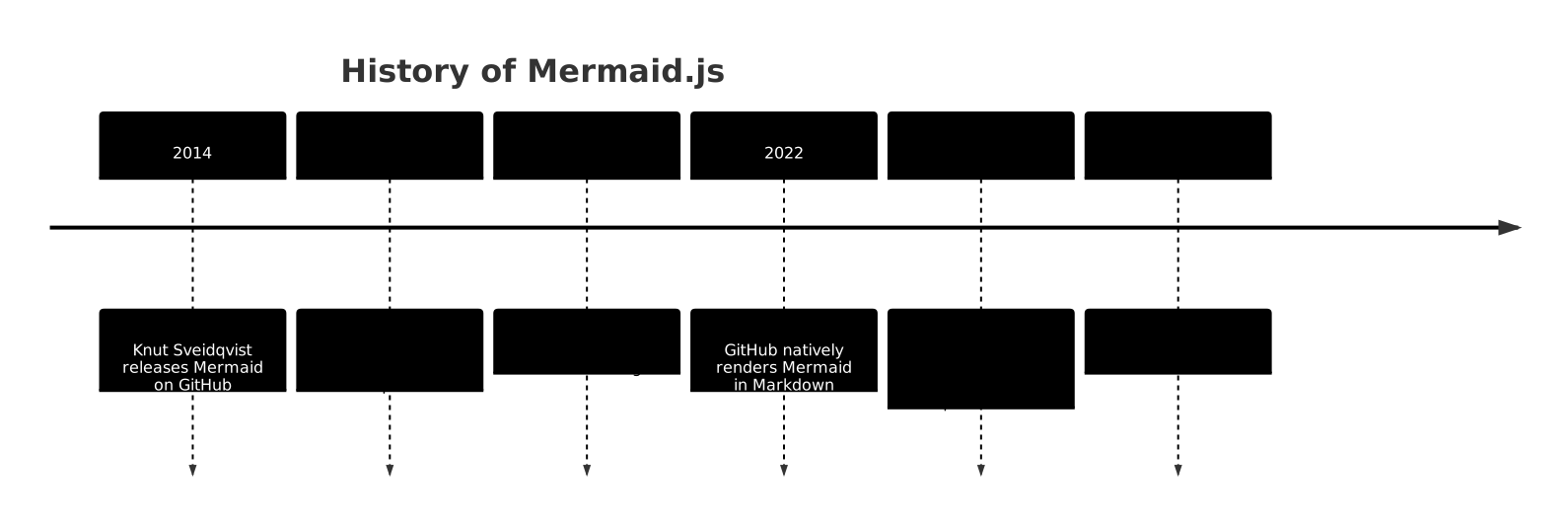
Mermaid timeline example
Copy the mermaid timeline example below. The image at the top is this diagram rendered — paste the code into GitHub markdown or the live editor.
A mermaid timeline diagram shows events, milestones, and phases in chronological order using nothing but text. No drag-and-drop tools.
Timeline diagrams are perfect for:
- Product roadmaps and release schedules
- Historical events and project retrospectives
- Onboarding docs showing company or project history
- Sprint planning visuals embedded in your README
In this guide you'll learn the complete Mermaid timeline syntax, see multiple real-world examples, and pick up tips for writing timelines that are easy to maintain.
Basic Mermaid Timeline Syntax
The timeline diagram type was introduced in Mermaid v9.4. The core structure is straightforward:
timeline
    title History of Mermaid.js
    2014 : Knut Sveidqvist releases Mermaid on GitHub
    2016 : First major adoption in developer docs
    2019 : GitHub integration discussions begin
    2022 : GitHub natively renders Mermaid in Markdown
    2023 : Mermaid v10 released with major improvements
2024 : Over 60,000 GitHub starsBreaking down the syntax:
timeline— declares the diagram typetitle— optional chart title displayed at the top2014 : Event text— a time period followed by:and the event label
Multiple events can share the same time period by adding more lines with the same period label.
Adding Multiple Events Per Period
One of the most useful features is grouping multiple events under a single time label:
timeline
    title 2025 Product Roadmap
    Q1 : Launch beta
        : Onboard first 100 users
        : Set up analytics
    Q2 : Public launch
        : Email campaign
    Q3 : Mobile app release
        : Paid tier introduced
    Q4 : Enterprise plan
: Partner integrationsEach additional : event line (indented, without repeating the period) is added to that period's column. This keeps related events grouped without cluttering the timeline axis.
Sections — Adding Colour-Coded Groups
For longer timelines, you can organise periods into named sections. Each section gets its own colour in the rendered diagram:
timeline
    title Company Growth Timeline
    section Early Stage
        2020 : Company founded
             : Seed funding ($500K)
        2021 : First product shipped
             : 5-person team
    section Growth Stage
        2022 : Series A ($3M)
             : 20-person team
             : First enterprise customer
        2023 : Product line expanded
             : Reached profitability
    section Scale Stage
        2024 : Series B ($15M)
             : 80-person team
        2025 : International expansion
: IPO preparationSections are declared with section Name and apply to all subsequent periods until another section is declared. They're great for separating phases of a project, company lifecycle stages, or sprint cycles.
Real-World Example: Software Release History
Here's a mermaid timeline diagram documenting a product's version history — a common use case for developer docs and README files:
timeline
    title My App — Release History
    section Alpha
        v0.1 : Core authentication
             : Basic CRUD operations
        v0.2 : REST API stabilised
             : Unit tests added
    section Beta
        v0.5 : Public beta launched
             : Dashboard UI
             : Email notifications
        v0.9 : Performance optimisations
             : Bug fixes from beta feedback
    section Production
        v1.0 : General availability
             : Stripe payments integrated
        v1.1 : Team collaboration features
        v2.0 : Real-time sync
: Mobile app (iOS + Android)Because the source is plain text, this lives right in your repo. When you ship v2.1, you add two lines — no image exports needed.
Example: Project Sprint Timeline
Timeline diagrams also work well for sprint planning or retrospective documentation:
timeline
    title Q1 Sprint Overview
    section Sprint 1 (Jan)
        Week 1 : Kick-off and backlog grooming
               : Environment setup
        Week 2 : User auth module
        Week 3 : Profile management
        Week 4 : Sprint review and demo
    section Sprint 2 (Feb)
        Week 5 : Dashboard v1
               : API rate limiting
        Week 6 : Notifications service
        Week 7 : Data export feature
        Week 8 : Sprint review
    section Sprint 3 (Mar)
        Week 9  : Mobile-responsive UI
        Week 10 : Performance profiling
        Week 11 : Load testing
Week 12 : Q1 retrospectiveExample: Historical Technology Timeline
Mermaid timeline diagrams aren't just for software projects. They're equally useful for educational content, articles, and documentation that places events in historical context:
timeline
    title Key Moments in Web Development
    section Web 1.0
        1991 : Tim Berners-Lee publishes the first website
        1994 : Netscape Navigator launches
        1995 : JavaScript created by Brendan Eich
             : Java applets introduced
        1996 : CSS 1 specification released
    section Web 2.0
        2004 : Gmail launches, proving rich web apps are possible
        2005 : AJAX popularised by Google Maps
             : YouTube founded
        2006 : jQuery released
        2008 : V8 JavaScript engine by Google
        2009 : Node.js created by Ryan Dahl
    section Modern Web
        2013 : React released by Facebook
        2014 : Vue.js introduced
        2016 : Angular 2 released
        2017 : WebAssembly becomes a W3C recommendation draft
        2020 : Deno 1.0 released
2022 : Bun JavaScript runtime releasedEmbedding Timelines in Your Docs
Mermaid timeline diagrams render natively in GitHub Markdown (wrap in a mermaid code fence), Notion (paste using the Mermaid block), Obsidian, Docusaurus, MkDocs, and anywhere Mermaid is supported.
For GitHub specifically:
timeline
title My Project Milestones
2024 : MVP shipped
2025 : 1,000 users
You can also try and iterate on your timeline syntax in the Mermaid Live Editor before committing — it gives instant visual feedback as you type, so you can see how sections and event groupings look before they go into your docs.
Mermaid Timeline vs Gantt Chart
Mermaid offers two diagram types that handle time-based content differently:
| Feature | Timeline | Gantt Chart |
|---|---|---|
| Purpose | Events and milestones | Task durations and schedules |
| Shows duration | No | Yes |
| Dependencies | No | Yes |
| Best for | History, roadmaps, retrospectives | Project planning, scheduling |
| Syntax complexity | Simple | Moderate |
If you need to show how long tasks take, use a Gantt chart. If you want to place events and milestones in chronological context, use a timeline diagram.
Tips for Better Timeline Diagrams
Keep event labels short. The timeline renders each event as a chip inside a column. Long text wraps awkwardly. Aim for 3-6 words per event.
Use consistent period granularity. Mixing Q1 2024 with Week 3 in the same diagram looks messy. Pick a granularity (quarters, months, sprints) and stick to it.
Use sections for long timelines. Anything with more than 6-8 periods benefits from section groupings — they add colour contrast and logical separation.
Put the most important events first in a period. Mermaid displays events top-to-bottom within a period column. Lead with the headline event.
Test in the live editor first. Before adding a timeline to your repo's README or docs, paste it into mermaideditor.lol to see how it renders. Easier to tweak there than after pushing a commit.
Troubleshooting Common Issues
Timeline not rendering? Check that you're on Mermaid v9.4+. GitHub, Notion, and most modern integrations are already there, but self-hosted tools may lag behind.
Events appearing in wrong order? Mermaid renders periods in the order they appear in the source — there's no automatic date sorting. Write them top-to-bottom in chronological order.
Text overflowing? Shorten event labels or split into multiple sections.
Section colours look off in dark mode? Mermaid's built-in themes handle dark mode differently. Use the dark or default theme directive at the top of your diagram if needed.
Conclusion
Mermaid timeline diagrams are a quick, maintainable way to visualise chronological information in your documentation. The syntax is minimal, the output is clean, and because diagrams live as text in your repo, they stay up-to-date as your project evolves.
Start with a simple 4-5 period timeline, add sections when it grows, and you'll have professional-looking roadmap and history diagrams without ever opening a design tool.
Try building your timeline diagram for free at mermaideditor.lol →
Additional Guide: How to Use Mermaid Timeline Diagrams: Complete Instructions Guide (2026)
Mermaid timelines are one of the most underused features in the library. Everyone knows flowcharts and sequence diagrams — but timelines? They're clean, readable, and perfect for project overviews, research plans, and historical summaries.
This guide covers everything: the full syntax, sections, multi-line events, and real working examples you can copy and run immediately.
What Is a Mermaid Timeline?
A Mermaid timeline (timeline diagram type) lets you map events to time periods using plain text. You define time sections, then list events under each one. Mermaid renders it as a horizontal or vertical visual timeline.
It's different from a Gantt chart. Gantt tracks duration and dependencies. A timeline is simpler — it's a chronological story.
When to use it:
- Project milestone overviews
- Product roadmaps
- Research planning (phases of a study)
- Historical event summaries
- Onboarding sequences
Basic Syntax — Your First Timeline
Here's the minimal structure:
timeline
    title My Project Timeline
    section Phase 1
        Kick-off meeting : 2026-01-01
        Requirements done : 2026-01-15
    section Phase 2
        Design complete : 2026-02-01
Dev complete : 2026-03-01What this does: Creates a timeline with two sections (Phase 1 and Phase 2), each with two events. The colon separates the event label from the date.
Key rules:
- timeline keyword starts the diagram
- title is optional but recommended
- section groups related events
- Each event: Event label : date-or-period
Understanding Sections
Sections are the backbone of Mermaid timelines. They create visual groupings that help readers scan the timeline at a glance.
timeline
    title Software Release History
    section 2024
        v1.0 Launch : Jan 2024
        v1.1 Bug fixes : Mar 2024
        v1.2 New features : Jun 2024
    section 2025
        v2.0 Major rewrite : Jan 2025
        v2.1 Performance : Apr 2025
    section 2026
        v3.0 AI features : Feb 2026
v3.1 Mobile app : May 2026What this does: Maps a software product's release history across three years. Each section represents a year, and events inside show individual releases.
Sections don't have to be time-based. You can use phases, themes, or any logical grouping.
Events Without Sections
You can skip sections entirely for simple timelines:
timeline
    title Key Dates for Product Launch
    Idea validated : Week 1
    MVP built : Week 3
    Beta testers recruited : Week 5
    Public launch : Week 8
First 100 users : Week 10What this does: Shows a linear sequence of 5 milestones without any grouping. Best for short timelines where you don't need categories.
This is the simplest form — just a title and events. Good for roadmaps where phases aren't needed.
Multi-Event Entries
One of the most useful features: multiple events can share the same time period. This is great for showing parallel tasks.
timeline
    title Q1 2026 Sprint Plan
    section January
        Backend API design
        Database schema finalized
        Team onboarding : Jan 2026
    section February
        Frontend development
        API integration
        Unit testing : Feb 2026
    section March
        QA testing
        Performance optimization
Staging deployment : Mar 2026What this does: Shows parallel workstreams in each month. Multiple items are listed under the same section, making it clear that these tasks happen simultaneously.
Notice that only the last item in each section gets the : date — the others are just labels. This is valid syntax and renders cleanly.
Styling Your Timeline
You can add themes and customize via Mermaid's %%{init: ...}%% directive:
%%{init: { 'logLevel': 'debug', 'theme': 'forest' } }%%
timeline
    title Team Milestones — Forest Theme
    section Founding
        Company incorporated : 2020
        First hire : 2020
    section Growth
        Series A raised : 2022
        50 employees : 2023
    section Scale
        International expansion : 2025
IPO filed : 2026What this does: Applies the "forest" color theme to the timeline. Available themes: default, forest, dark, neutral, base. The logLevel: debug helps during development when you need to troubleshoot rendering issues.
Common Mistakes (and How to Fix Them)
Mistake 1: Forgetting the timeline keyword
Every diagram needs the type declaration first. timeline must be the first non-comment line.
Mistake 2: Missing colons
Event syntax requires : period. Without the colon, Mermaid treats the line as a continuation, not a new event.
Mistake 3: Inconsistent indentation
Mermaid uses indentation to understand structure. Keep sections and events consistently indented (2 or 4 spaces — pick one).
Mistake 4: Overly long event labels
Long labels overflow on narrow screens. Keep event text under 40 characters for clean rendering.
Full Example: Product Launch Timeline
Here's a complete, real-world example combining all the concepts:
timeline
    title SaaS Product Launch — 2026 Roadmap
    section Discovery (Jan)
        Customer interviews done
        Problem validated
        Competitors analyzed : January
    section Build (Feb-Mar)
        MVP development
        Internal alpha testing
        Bug fixes complete : Feb-Mar
    section Launch (Apr)
        Beta program opens
        Press release published
        Product Hunt launch : April
    section Growth (May+)
        Paid ads start
        Content marketing live
First 500 customers : May onwardsWhat this does: A complete SaaS product launch plan, from discovery to growth, mapped across 4 months. This is production-ready — you could put this in a project README today.
Tips for Better Timelines
Keep it scannable. Timelines work best when you can read them in 30 seconds. If you're adding more than 6-8 events per section, consider splitting into multiple diagrams.
Use consistent date formats. Mixing "Jan 2026", "2026-01-01", and "Q1 2026" in the same timeline looks messy. Pick one format and stick to it.
Pair with a Gantt when needed. If you need to show duration or dependencies between tasks, a Mermaid Gantt chart is a better fit. Timelines show *when*, Gantts show *how long*.
Embed in docs. Mermaid works natively in GitHub Markdown, Notion, GitLab, and most modern wikis. Write your timeline in plain text and it renders automatically.
Want to See More Timeline Examples?
Check out our post on 10 Mermaid Timeline Examples with Step-by-Step Code for real use cases including research plans, sprint schedules, and historical timelines.
For the full syntax reference, visit the Mermaid Timeline Syntax guide.
---
Try this live in our free Mermaid Editor → mermaideditor.lol
Paste any of the code blocks above and see your timeline render instantly. No sign-up, no install. Just paste and go.
---
*Related: Mermaid Cheat Sheet · Diagram Templates · Home*
Additional Guide: 10 Mermaid Timeline Examples with Step-by-Step Code (2026)
The best way to learn Mermaid timelines is to see real ones — not toy examples, but actual diagrams you'd use in a project. Here are 10 working examples, each with the code and a breakdown of what's happening.
Copy any of these, paste into mermaideditor.lol, and you'll see it render immediately.
Example 1: Software Sprint Timeline
Great for engineering teams doing 2-week sprints. Shows what gets done each sprint without the overhead of a full Gantt chart.
timeline
    title Backend API Project — Sprint Timeline
    section Sprint 1 (May 1-14)
        Auth service design
        DB schema review
        Auth endpoints live : May 14
    section Sprint 2 (May 15-28)
        User profile API
        File upload service
        Integration tests pass : May 28
    section Sprint 3 (Jun 1-14)
        Admin dashboard API
        Rate limiting
        Performance benchmarks : Jun 14
    section Sprint 4 (Jun 15-30)
        Security audit
        Load testing
v1.0 shipped : Jun 30Step-by-step breakdown: Four sprints, each 2 weeks. Each section has 2-3 parallel tasks and one milestone (the deliverable). The last event in each section gets the date label — this becomes the anchor point readers scan for.
---
Example 2: Product Roadmap
A high-level roadmap you'd show to stakeholders or put in a pitch deck.
timeline
    title MobileApp Roadmap 2026
    section Q1 2026
        MVP features defined
        iOS prototype built
        Android prototype built : Q1
    section Q2 2026
        Beta launch (iOS)
        Beta launch (Android)
        1,000 beta users : Q2
    section Q3 2026
        Public launch
        App Store featured
        10,000 downloads : Q3
    section Q4 2026
        Premium tier launch
        Enterprise plan
Profitability : Q4Step-by-step breakdown: Quarterly sections, each with 3 events. The last event is always a measurable goal (users, downloads, revenue). This gives stakeholders a story arc, not just a list of tasks.
---
Example 3: Research Project Plan
Academic researchers love this format. See more in our dedicated post on building a research plan with Mermaid timeline.
timeline
    title PhD Research Plan — 3 Year Study
    section Year 1
        Literature review complete
        Research questions defined
        Ethics approval received : 2024
    section Year 2
        Data collection phase 1
        Qualitative interviews (n=30)
        Preliminary analysis done : 2025
    section Year 3
        Full data analysis
        Paper submitted to journal
Thesis defense : 2026Step-by-step breakdown: Three yearly sections map the arc of a 3-year PhD program. Each section has the key deliverables that supervisors and committees care about. Clean enough to put in a research proposal.
---
Example 4: Company History
Perfect for About pages, investor decks, and onboarding docs.
timeline
    title Acme Corp — Company History
    section 2018
        Founded in garage
        First product shipped : 2018
    section 2019
        Seed round ($500K)
        First 10 employees : 2019
    section 2021
        Series A ($5M)
        Opened London office : 2021
    section 2023
        Series B ($20M)
        100 employees milestone : 2023
    section 2026
        IPO filed
Global expansion : 2026Step-by-step breakdown: A company's milestones from founding to IPO. Two events per section keeps it readable. Funding rounds and headcount milestones are the kinds of facts that make company histories scannable.
---
Example 5: Content Marketing Calendar
Editorial teams use this to visualize what's publishing when across channels.
timeline
    title Content Calendar — May 2026
    section Week 1 (May 1-7)
        Blog: SEO fundamentals
        Newsletter: subscriber growth tips
        Launch: video series ep.1 : May 7
    section Week 2 (May 8-14)
        Blog: case study
        Podcast: guest interview
        Webinar: live Q&A : May 14
    section Week 3 (May 15-21)
        Blog: product update
        Social: UGC campaign
        Email: re-engagement : May 21
    section Week 4 (May 22-31)
        Blog: monthly roundup
        Newsletter: May wrap-up
Retrospective: metrics review : May 31Step-by-step breakdown: Weekly sections, each with content across three channels (blog, email, video/social). The last item is either a publish event or a review. Easy to update as the month progresses.
---
Example 6: Onboarding Journey
Map the steps a new user goes through, from sign-up to power user.
timeline
    title New User Onboarding Flow
    section Day 0
        Account created
        Welcome email sent
        Profile setup prompt : Day 0
    section Day 1
        First feature tour
        Sample project created
        Invite team prompt : Day 1
    section Day 3
        Usage tip email
        Template suggestions
        Support check-in : Day 3
    section Day 7
        Power user guide sent
        Upgrade prompt shown
        NPS survey triggered : Day 7
    section Day 30
        Monthly summary email
        Loyalty reward offered
Retention check : Day 30Step-by-step breakdown: Day-based sections show exactly when each touchpoint fires. Product managers use this to spot gaps in onboarding flows. The time labels (Day 0, Day 1, etc.) make the cadence obvious.
---
Example 7: Event Planning
For conferences, launches, or marketing events with multiple workstreams.
timeline
    title Annual Dev Conference — Planning
    section 6 Months Out
        Venue booked
        Speakers recruited
        Sponsorship packages sent : Nov 2025
    section 3 Months Out
        Agenda published
        Tickets on sale
        Marketing campaign live : Feb 2026
    section 1 Month Out
        Catering confirmed
        AV setup planned
        Attendee emails sent : Apr 2026
    section Event Week
        Registration opens
        Keynote rehearsal
Conference day 1 : May 2026Step-by-step breakdown: Lead-time sections (6 months, 3 months, 1 month, event week) make this reusable for any event. The approach — counting down instead of counting up — is how event planners actually think.
---
Example 8: Personal Career Timeline
Great for portfolios, LinkedIn "About" sections, or just tracking your own growth.
timeline
    title Career Journey
    section Early Career
        Junior Dev at Startup : 2015
        First team lead role : 2017
    section Mid Career
        Senior Engineer : 2019
        First conference talk : 2020
        Open source project (2K stars) : 2021
    section Now
        Principal Engineer : 2023
        Started consulting practice : 2025
Author of dev book : 2026Step-by-step breakdown: Three loose phases (early, mid, now) instead of strict years. This gives a narrative arc rather than a flat list of jobs. The standout achievements (conference talk, GitHub stars, book) tell the story better than job titles alone.
---
Example 9: Security Incident Timeline
When a security incident happens, you need a clear timeline for the post-mortem report.
timeline
    title Security Incident — May 5, 2026
    section Detection
        Anomalous login detected
        Alert triggered in SIEM
        On-call engineer notified : 02:14 AM
    section Containment
        Affected accounts locked
        API keys rotated
        External access blocked : 02:45 AM
    section Investigation
        Log analysis started
        Attack vector identified
        Scope confirmed (3 accounts) : 04:30 AM
    section Recovery
        Accounts restored
        Security patches applied
All-clear declared : 09:00 AMStep-by-step breakdown: Time-stamped sections (02:14, 02:45, etc.) make incident timelines precise. Four phases — Detection, Containment, Investigation, Recovery — follow the standard incident response framework. This format goes directly into a post-mortem doc.
---
Example 10: Learning Path / Curriculum
For courses, bootcamps, or self-study plans.
timeline
    title Full-Stack Developer Learning Path
    section Foundations (Month 1)
        HTML & CSS basics
        JavaScript fundamentals
        First static website : Month 1
    section Frontend (Month 2-3)
        React basics
        State management
        Built 3 portfolio projects : Month 3
    section Backend (Month 4-5)
        Node.js & Express
        SQL & databases
        REST API built : Month 5
    section Full Stack (Month 6)
        Deploy to cloud
        Auth & security
Capstone project shipped : Month 6Step-by-step breakdown: A 6-month bootcamp curriculum in one diagram. Each section ends with a concrete deliverable (website, projects, API, capstone). Instructors can use this as the first slide of an orientation session.
---
Which Example Should You Start With?
- Engineering teams: Examples 1 (sprint) or 9 (incident) are immediately practical.
- Product managers: Examples 2 (roadmap) or 7 (event) give you stakeholder-ready visuals fast.
- Researchers/academics: Examples 3 (research plan) and 10 (learning path) map directly to your work.
- Content teams: Example 5 (content calendar) will replace your spreadsheet.
Want to dive deeper into the syntax? Read the complete Mermaid timeline instructions guide or the timeline syntax reference.
---
Try these live in our free Mermaid Editor → mermaideditor.lol
Paste any example above and watch it render in real-time. No setup, no account needed.
---
*Related: Mermaid Cheat Sheet · Diagram Templates · Home*
Additional Guide: Mermaid Timeline Syntax: Every Element Explained with Examples
This is the definitive syntax reference for Mermaid timelines. Not a beginner's intro — a complete element-by-element breakdown of every syntax feature, with working examples and the edge cases you'll actually hit.
If you're new to timelines, start with the Mermaid Timeline Instructions Guide. Come back here when you need the specific syntax for something.
Diagram Declaration
Every Mermaid timeline starts with the timeline keyword on its own line:
timeline
    title My First Timeline
    Event 1 : Period 1
Event 2 : Period 2What this does: The simplest valid timeline — a title and two events. timeline is the type declaration. Without it, Mermaid doesn't know which diagram type you're writing.
Edge case: Timeline (capital T) does NOT work. The keyword is case-sensitive: timeline only.
---
Title Element
timeline
    title Product Roadmap 2026
    Launch MVP : Q1
    Beta program : Q2
Public launch : Q3Syntax: title Your Title Text
Rules:
- Goes immediately after the timeline declaration
- Optional — timelines render without a title
- One title only — multiple title lines cause parse errors
- No quotes needed, even with spaces
What this does: Adds a heading above the timeline. Recommended for any timeline that will be shared or embedded in docs — gives immediate context.
---
Event Syntax
The core building block:
timeline
    title Event Syntax Examples
    Single event : Period A
    Another event : Period B
Third event : Period CSyntax: EventLabel : TimePeriod
The colon : separates the event label from the time period. Both sides are plain text — no quoting needed unless you need special characters.
What this does: Three events mapped to three periods. The period (right of the colon) is what renders as the time label in the diagram.
Edge cases:
- Missing colon: the line is treated as a multi-event entry (see below), not a new event with a period
- Extra spaces around the colon are fine: Event : Period and Event:Period both work
- Long event labels: keep under 50 chars for clean rendering. Longer labels wrap or overflow.
---
Section Element
Sections group events into visual blocks:
timeline
    title Grouped by Phase
    section Phase 1
        Research complete
        Prototype built : Month 1
    section Phase 2
        User testing done
        Feedback analyzed : Month 2
    section Phase 3
        Final version shipped
Documentation done : Month 3Syntax: section Section Name
Rules:
- Sections must come before their events (events are indented under the section)
- A timeline can mix sections and non-section events — though it's cleaner to use one or the other
- Section names appear as visual dividers in the rendered diagram
- No end keyword needed — the next section or end of file closes the current one
What this does: Adds visual grouping. Three phases, each with two events. The section header acts like a category label for the events underneath.
---
Multi-Event Entries (Parallel Events)
Multiple events can share the same time period:
timeline
    title Parallel Work in Q1
    section January
        Backend API built
        Frontend prototype
        Mobile wireframes : January
    section February
        API integration
        Frontend polish
Mobile beta build : FebruarySyntax: List multiple items under a section. Only the last item gets the : Period marker. The others are treated as additional events for the same period.
What this does: Shows three parallel work streams in each month. January has three simultaneous activities; February has three more. The time period only appears once (on the last item), preventing visual clutter.
Edge case: All items above the colon-marked one render as events for the same period. If you accidentally omit the colon from every item in a section, Mermaid may render them oddly — always have exactly one event : period per section as the anchor.
---
Date and Period Formats
Mermaid timelines are format-agnostic. The period text is just a label — Mermaid doesn't validate or parse dates:
timeline
    title Date Format Flexibility
    Project kick-off : 2026-01-01
    Sprint 1 ends : January 14
    Beta launch : Q1 2026
    Public launch : Spring 2026
Year-end review : Dec 2026What this does: Shows five different date/period formats in one diagram. ISO dates, natural language months, quarter notation, seasons, and abbreviated months — all valid. Pick the format that matches your audience's expectations.
Best practice: Be consistent within a single timeline. Mixing formats (ISO dates in section 1, "Q1/Q2" in section 2) looks unprofessional. Choose one convention and stick to it.
---
Theme Configuration
Apply Mermaid's built-in themes via the %%{init}%% directive:
%%{init: { 'theme': 'forest' } }%%
timeline
    title Forest Theme Timeline
    section 2024
        Planted seeds
        First growth : 2024
    section 2025
        Rapid expansion
        Maturity reached : 2025
    section 2026
Full bloom : 2026Syntax: %%{init: { 'theme': 'THEMENAME' } }%% on the line before timeline
Available themes: default, forest, dark, neutral, base
What this does: Applies the "forest" color theme to the entire diagram. The %%{init}%% directive tells the Mermaid renderer to apply these settings before rendering.
Note: The init directive affects the whole diagram. You can also set logLevel, fontFamily, and other renderer options in the same object.
---
Custom Styling via init
More advanced customization through the init block:
%%{init: {
  'theme': 'base',
  'themeVariables': {
    'primaryColor': '#7B2D8B',
    'primaryTextColor': '#fff',
    'lineColor': '#7B2D8B'
  }
} }%%
timeline
    title Custom Color Timeline
    Feature A shipped : Q1
    Feature B launched : Q2
    Feature C in beta : Q3
Full suite complete : Q4What this does: Sets custom colors using themeVariables. primaryColor changes the section/event block color. primaryTextColor sets text color inside blocks. lineColor sets the connecting line color. Use hex codes.
---
Section-Free Timelines
For simple linear sequences, skip sections entirely:
timeline
    title Simple Linear Timeline
    Idea formed : Week 1
    Research done : Week 2
    Prototype built : Week 4
    Tested with users : Week 6
Shipped : Week 8What this does: A clean 5-event linear timeline with no section grouping. Works best for short timelines (under 8 events) where the events are sequential and don't need categorization.
---
Long Labels and Wrapping
timeline
    title Labels of Different Lengths
    Short : Jan
    A medium-length event label here : Feb
    This is a much longer event label that will test wrapping behavior : Mar
Back to short : AprWhat this does: Tests how labels of different lengths render. Short labels are clean. Medium labels work fine. Very long labels will wrap or overflow depending on the renderer. Rule of thumb: Keep event labels under 50 characters. If you need more context, put it in a supporting document and keep the timeline label concise.
---
Nesting Sections: What Works and What Doesn't
Mermaid timelines do NOT support nested sections. You can't do:
section Phase 1
  section Sub-phase 1a
This will either parse incorrectly or render as a section named "section Sub-phase 1a". If you need hierarchy, use a different diagram type:
- For hierarchical breakdowns: use a mindmap
- For task dependencies: use a Gantt chart
- For process hierarchy: use a flowchart
---
Complete Syntax Quick Reference
| Element | Syntax | Example |
|---|---|---|
| Diagram start | `timeline` | `timeline` |
| Title | `title Text` | `title My Timeline` |
| Section | `section Name` | `section Q1 2026` |
| Event with period | `Label : Period` | `Launch : June 2026` |
| Event without period | `Label` | `Feature built` |
| Theme | `%%{init: {'theme': 'x'}}%%` | before `timeline` line |
| Comment | `%% comment text` | `%% TODO: add events` |
---
Common Parse Errors and Fixes
Error: "Diagram not rendered"
Usually means a typo in the timeline keyword, or the init directive is malformed.
Error: Events in wrong section
Check your indentation. Section events must be indented relative to the section keyword.
Diagram renders but missing events
A missing colon means the line was parsed as a multi-event item without a period anchor. Add : period to the event.
All events show same period
Every event in a section without its own colon inherits the last anchored period. Make sure each period group has exactly one : period marker.
---
Related Timeline Resources
- Mermaid Timeline Instructions: Full Guide — beginner-friendly walkthrough
- 10 Timeline Examples with Step-by-Step Code — real use cases
- Research Plan Timeline Examples — academic and UX research
---
Try this live in our free Mermaid Editor → mermaideditor.lol
Every syntax example on this page works in our editor. Test edge cases, experiment with themes, and export your finished timeline.
---
*Related: Mermaid Cheat Sheet · Diagram Templates · Home*
Additional Guide: Building a Research Plan with Mermaid Timeline: Real Examples
A research plan without a timeline is just a list of intentions. Adding a Mermaid timeline turns it into a visual schedule that supervisors, collaborators, and stakeholders can scan in 10 seconds.
This post shows how to build research timelines for different contexts: academic studies, UX research, market research, and literature reviews. All examples are ready to copy and use.
Why Use Mermaid for Research Timelines?
Most researchers use Excel Gantt charts or PowerPoint slides for timelines. Both work, but both require manual updates when plans shift. Mermaid timelines live in plain text — change a date, re-render, done.
Practical advantages:
- Embed directly in GitHub READMEs, Notion docs, or Confluence pages
- Version-control your timeline alongside your code or notes
- Share as markdown — no software required to view
- Update in seconds vs. reformatting cells/slides
For the underlying syntax, read the complete Mermaid timeline instructions guide.
Example 1: Academic Research Plan (1-Year Study)
timeline
    title Year 1 Academic Research Plan
    section Q1 (Jan-Mar)
        Background reading
        Gap analysis complete
        Research questions finalized : March
    section Q2 (Apr-Jun)
        Ethics board submission
        Ethics approval received
        Pilot study designed : June
    section Q3 (Jul-Sep)
        Pilot data collected (n=10)
        Pilot analysis done
        Main study protocol set : September
    section Q4 (Oct-Dec)
        Main data collection begins
        Interim analysis
Year 1 report submitted : DecemberWhat this does: Maps a full year of academic research across four quarters. The Q structure aligns with how most universities report progress. Ethics approval is correctly placed in Q2 (before any data collection). The deliverable at the end of each quarter is what gets reviewed in supervision meetings.
How to adapt it: Change the section labels to match your actual timeline. If your ethics board is slow, push Q2 back and compress Q3. The beauty of plain text is you can do this in 30 seconds.
---
Example 2: UX Research Plan
UX research moves faster than academic research. This plan covers a 6-week discovery sprint.
timeline
    title UX Research — Discovery Sprint (6 Weeks)
    section Week 1-2
        Stakeholder interviews (5 sessions)
        Research brief approved
        Screener survey live : Week 2
    section Week 3-4
        User interviews (10 participants)
        Contextual observation sessions
        Affinity mapping workshop : Week 4
    section Week 5
        Theme synthesis
        Journey map draft
        Insight statements written : Week 5
    section Week 6
        Final presentation prepared
        Readout to product team
Research report delivered : Week 6What this does: Shows a 6-week UX research sprint from stakeholder interviews through final delivery. The progression — interviews → synthesis → insights → presentation — follows the standard double-diamond research process. Product managers and designers immediately recognize this structure.
Key detail: Parallel activities within weeks are shown as multiple events in the same section. "User interviews (10 participants)" and "Contextual observation sessions" both happen in weeks 3-4, which this diagram makes clear.
---
Example 3: Literature Review Timeline
For PhD students and academic researchers, the literature review often takes longer than expected. This timeline forces clarity.
timeline
    title Systematic Literature Review — 12 Weeks
    section Search Phase (Wk 1-3)
        Search terms defined
        Databases selected (5)
        Initial search run — 847 papers : Week 3
    section Screening Phase (Wk 4-6)
        Title & abstract screening
        Full-text eligibility check
        Included papers confirmed — 62 : Week 6
    section Extraction Phase (Wk 7-9)
        Data extraction template built
        Quality assessment complete
        All 62 papers extracted : Week 9
    section Synthesis Phase (Wk 10-12)
        Thematic analysis
        Findings narrative written
Literature review submitted : Week 12What this does: A PRISMA-style systematic literature review mapped to 12 weeks. The numbers (847 papers → 62 included) are placeholders you'd replace with your actual PRISMA flow numbers. Supervisors love seeing this level of process rigor in a single diagram.
---
Example 4: Market Research Plan
Businesses doing market research before a product launch typically need to cover primary and secondary research. Here's a 10-week plan:
timeline
    title Market Research Plan — Product Launch Prep
    section Secondary Research (Wk 1-2)
        Industry report analysis
        Competitor matrix built
        TAM/SAM/SOM calculated : Week 2
    section Survey Design (Wk 3-4)
        Survey questions written
        Panel vendor selected
        Survey live (n=500 target) : Week 4
    section Primary Research (Wk 5-7)
        Survey data collected
        Focus groups (3 sessions)
        Interview transcripts coded : Week 7
    section Analysis (Wk 8-9)
        Quantitative analysis done
        Qualitative themes identified
        Key personas drafted : Week 9
    section Deliverables (Wk 10)
        Executive summary written
        Presentation slides built
Board readout complete : Week 10What this does: Separates secondary research (desk research, reports) from primary research (surveys, focus groups), which is how market research actually gets structured. The board readout at week 10 is the real deliverable this whole plan is working toward.
---
Example 5: Mixed-Methods Research Design
For studies combining quantitative and qualitative data collection:
timeline
    title Mixed-Methods Study — 18 Month Timeline
    section Phase 1: Quantitative (Month 1-6)
        Survey instrument validated
        Random sample recruited (n=200)
        Survey data collected
        Statistical analysis complete : Month 6
    section Phase 2: Qualitative (Month 7-12)
        Interview guide developed
        Purposive sample recruited (n=25)
        Semi-structured interviews run
        Thematic analysis complete : Month 12
    section Phase 3: Integration (Month 13-18)
        QUAN + QUAL findings merged
        Joint display created
        Meta-inferences written
Thesis chapter submitted : Month 18What this does: Shows the sequential QUAN → QUAL → integration structure of a convergent mixed-methods design. The final "integration" phase — where quantitative and qualitative findings are merged — is where mixed-methods studies often get vague. Putting it explicitly in the timeline forces the researcher to plan for it.
---
Tips for Research Timeline Diagrams
Be specific about deliverables. "Analysis done" is vague. "All 62 papers extracted" tells you exactly what completion looks like. Concrete deliverables make it easier to know if you're on schedule.
Account for buffer. Real research always hits delays: ethics board slowdowns, participant no-shows, data quality issues. Build a week of buffer into every major phase.
Version your timeline. When plans change (and they will), keep the old version in a separate file. Supervisors appreciate seeing how your plan evolved — it shows adaptive thinking.
Link to your protocol. If your timeline lives in a README or Notion page, link it to your actual research protocol document. The timeline is the overview; the protocol has the detail.
---
See More Timeline Examples
For more timeline patterns — sprints, content calendars, onboarding flows — see 10 Mermaid Timeline Examples with Step-by-Step Code.
For the full syntax reference, read Mermaid Timeline Syntax: Every Element Explained.
---
Try this live in our free Mermaid Editor → mermaideditor.lol
Paste any of the research timeline examples above and customize them for your project. Takes 5 minutes to go from blank page to presentation-ready diagram.
---
*Related: Mermaid Cheat Sheet · Diagram Templates · Home*